
A different way to use Apple Music on Mac
Tunefuse is an independent client for Apple Music. It changes how you browse and control your music; it doesn’t replace your Apple Music subscription.
Preloading and caching
Tunefuse starts loading albums while you browse and keeps previously opened content cached. These are the mechanisms behind its focus on responsive browsing. This page is a workflow comparison, not a timed benchmark; actual loading varies with your device, connection and cache.
From a saved song to the whole album
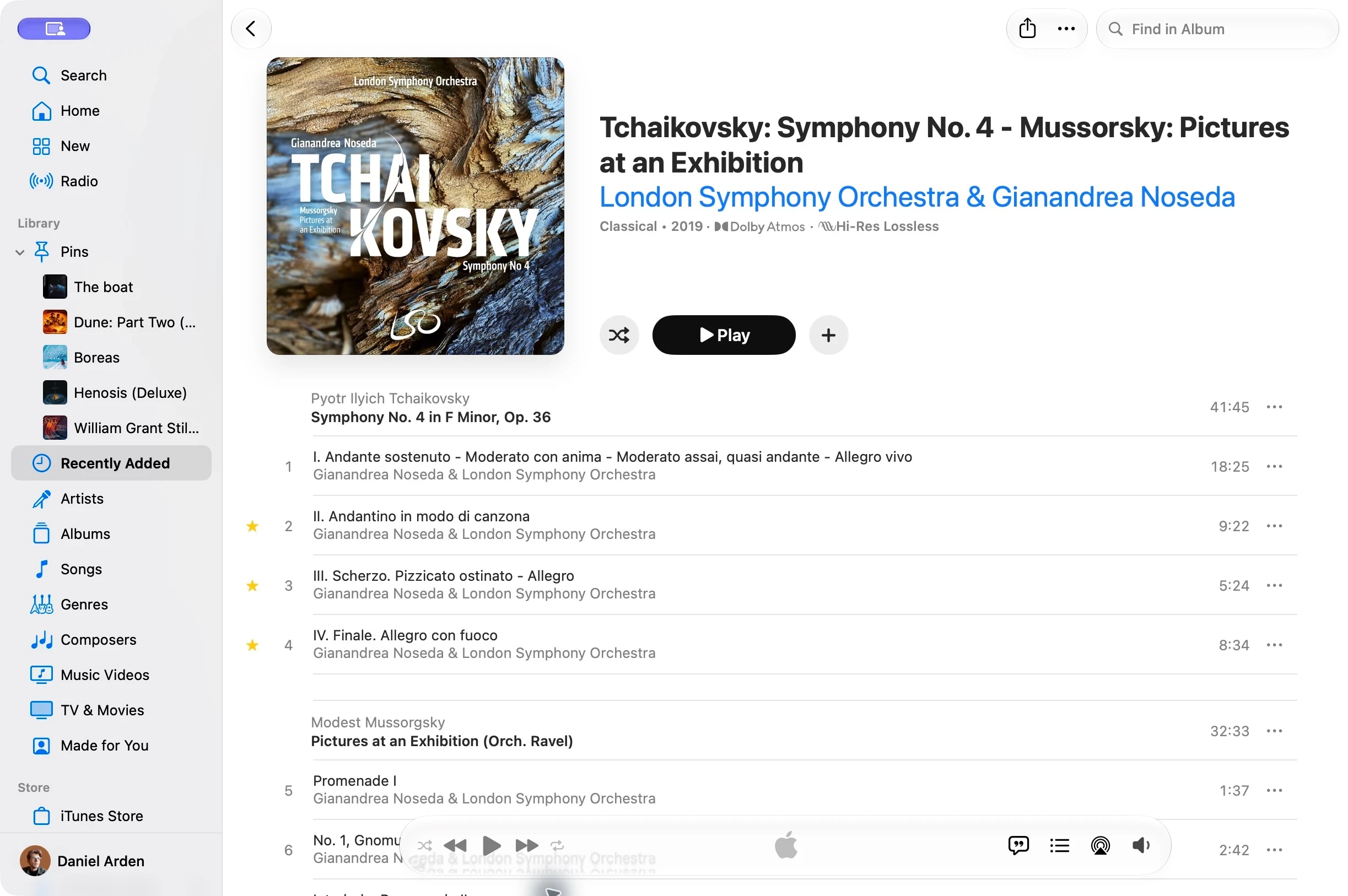
Saving a song doesn’t always mean saving its whole album. Apple Music’s library view focuses on the tracks you’ve added. To explore the catalog version, its album actions include “Show in Apple Music”; partially saved albums may also offer a complete-album link.
Apple Music
- Open the saved album in My Library.
- See the tracks you’ve saved.
- Open the catalog album to explore the rest.
Tunefuse
- Open an album in your library.
- Browse saved and matching catalog tracks together.
Tunefuse looks up the matching catalog album and brings it into the same view. You can keep browsing without adding every track to your library. Catalog matching and availability depend on Apple Music and the release.
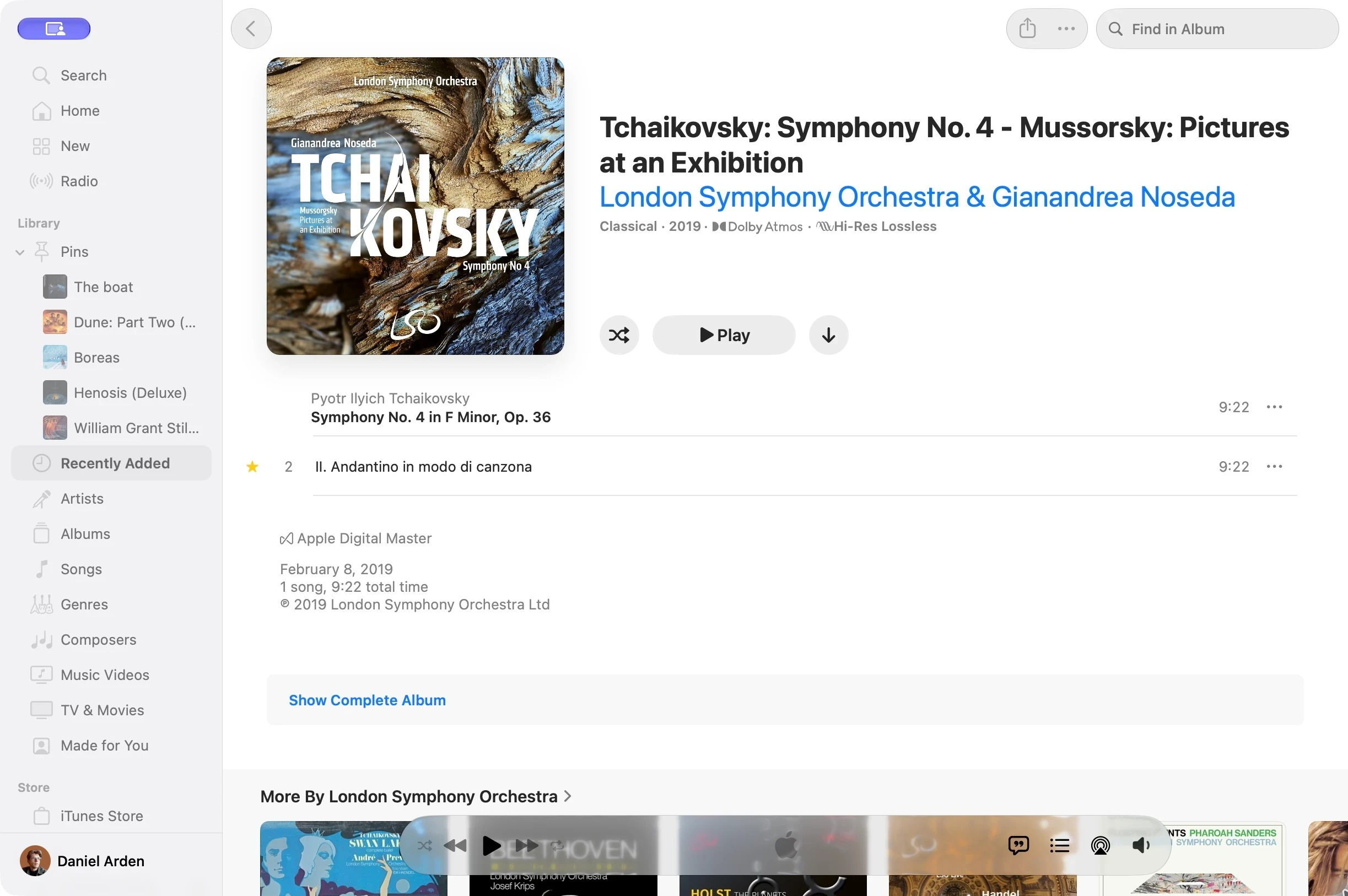
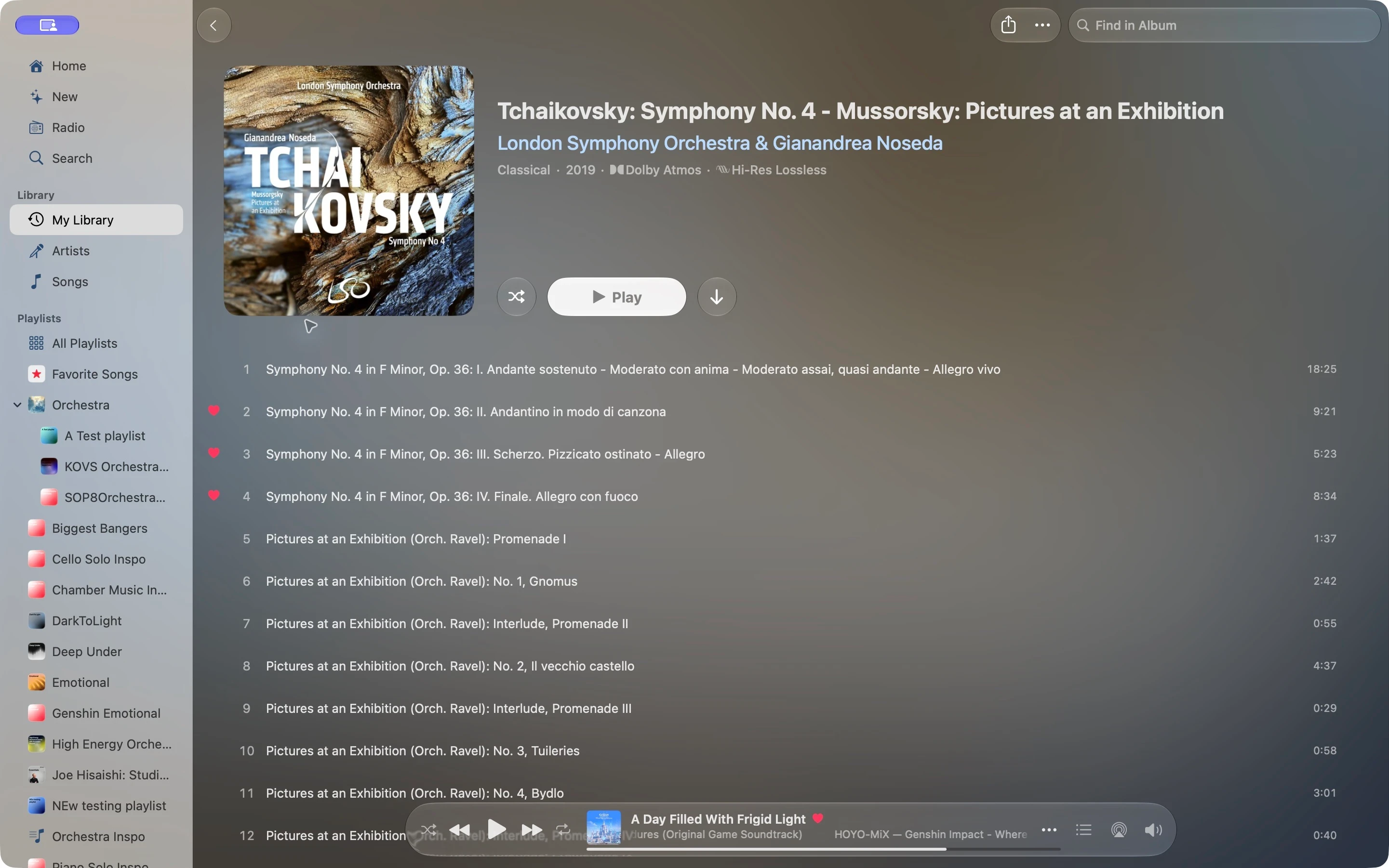
What does “Show Complete Album” open?
Keep exploring the artist
In Apple Music’s library workflow, selecting an artist can take you to the albums and songs by that artist in your own library. This is different from their full Apple Music artist page. “Show in Apple Music” opens that catalog destination.
Apple Music
Library album → artist in your library → full artist page in Apple Music.
Tunefuse
Library album → full artist page, including releases and top songs beyond your saved music.
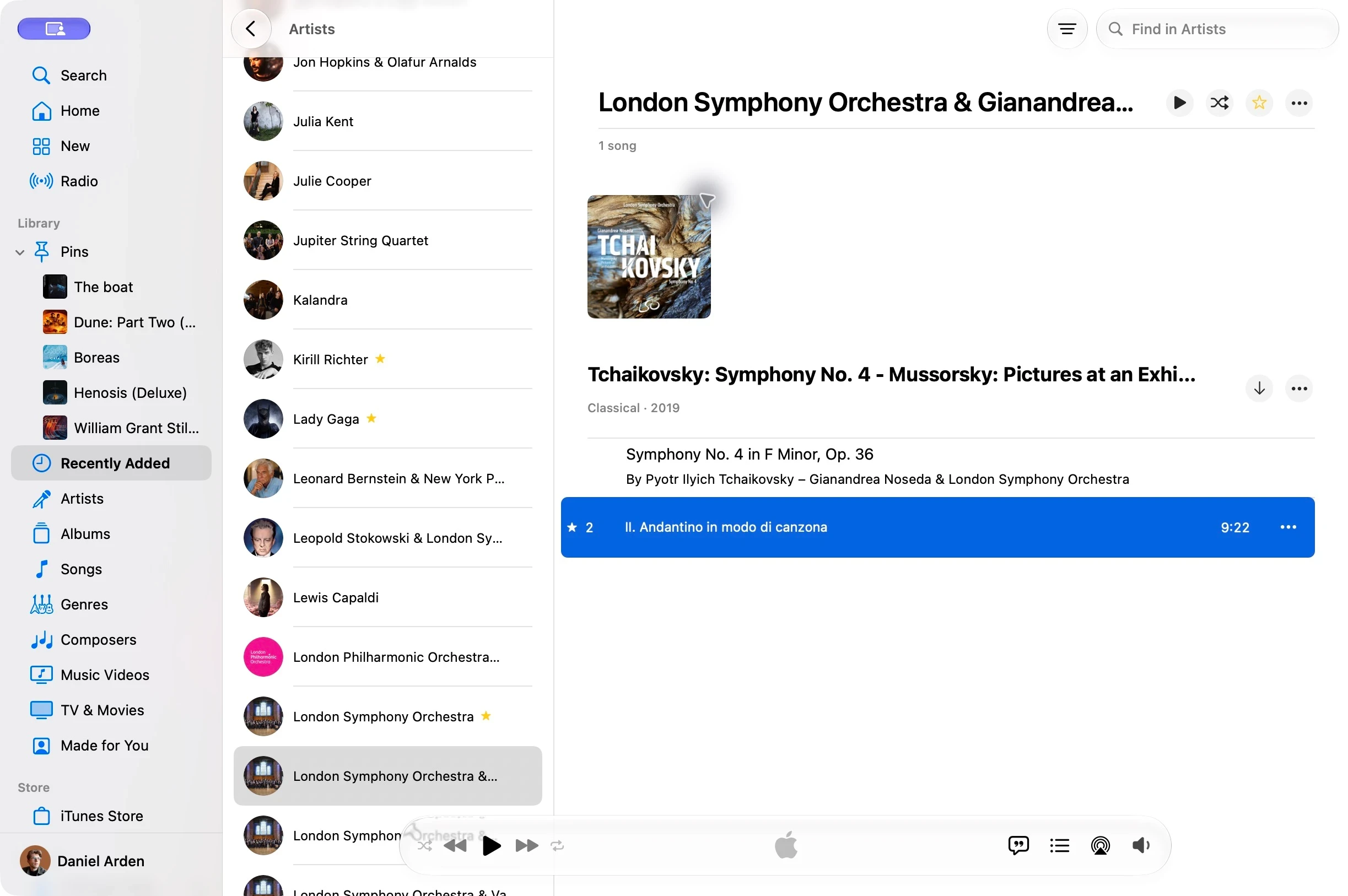
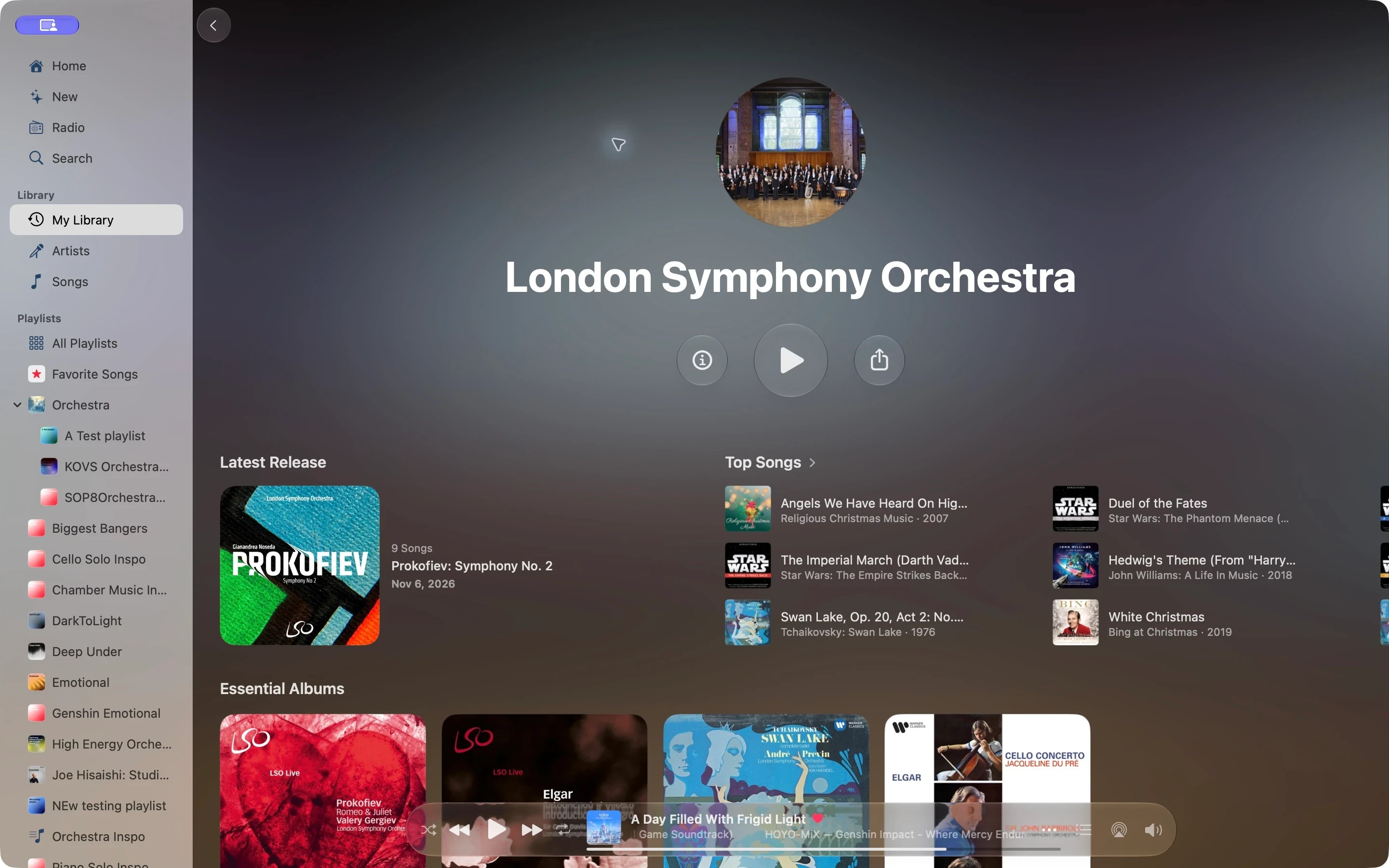
The destination is the difference: you can go from something you saved to exploring the artist’s wider catalog. Apple Music’s menus and navigation can vary with the app version and starting view.
The browsing differences at a glance
| When you want to… | Apple Music | Tunefuse |
|---|---|---|
| Explore a partially saved album | Move from the library album to the catalog version. | See saved and matching catalog tracks in one album view. |
| Explore an artist from a library album | The library destination focuses on saved music; open the catalog artist page to explore further. | Open the full artist page directly. |
| Return to an album | Loading depends on the app’s current state and connection. | Previously opened content stays cached; albums preload while browsing. |
| Search while working in another app | Use the controls and shortcuts available in Apple’s Music app. | Open the Hotkey Window with a configurable system-wide shortcut. |
This compares specific browsing workflows, not every feature or measured loading times. Both clients rely on Apple Music for subscription access and catalog availability.
Control the music while you work
The Hotkey Window brings search and playback controls to a customizable system-wide shortcut. On MacBooks with a notch, the notch player brings controls into reach when you move your pointer beneath it.
Choose the edition that fits
Direct Version adds features including AirPlay, audio routing and audio-file import. The App Store edition uses Apple for purchases and updates. Monthly and yearly subscriptions and a lifetime purchase are available; purchases unlock only the edition you buy.
Tunefuse is not affiliated with or endorsed by Apple. Read the getting started guide for requirements and purchase details, or choose a download.